



🚀 Introduction: Why Your MT4/MT5 Setup Matters
Starting your trading journey can feel overwhelming. Charts, candles, indicators – it’s a lot to take in. But here’s the secret: Your success starts with your setup.
A clean, organized MetaTrader platform helps you focus on what matters: making profitable decisions. In this guide, we’ll walk you through setting up MT4 or MT5 like a pro, even if you’re a complete beginner.
For more beginner guides, visit the Algo King Blog.
📥 Step 1: Download & Install MetaTrader
First things first: Get the right software.
- Visit your broker’s website or download MetaTrader 4 (MT4) or MetaTrader 5 (MT5) from the official MetaQuotes site.
- Choose the version compatible with your device (Windows, Mac, iOS, Android).
- Run the installer and follow the on-screen instructions.

Fig 1: MetaTrader Installation Wizard
Pro Tip: If you plan to use automated tools (EAs) later, ensure you download the Desktop Version for full functionality.
🔑 Step 2: Login to Your Trading Account
Once installed, open MetaTrader and log in:
- Go to File > Login to Trade Account.
- Enter your Login ID, Password, and Server (provided by your broker).
- Click OK. You should see your account balance in the "Terminal" window at the bottom.

Fig 2: Logging into Your Trading Account
Note: Always start with a Demo Account to practice without risking real money.
📊 Step 3: Customize Your Charts
A cluttered chart leads to confused decisions. Here’s how to clean it up:
Change Chart Colors:
- Right-click on the chart > Properties (or press F8).
- Go to the Colors tab.
- Set Background to Black/Dark Gray, Bull Candle to Green, and Bear Candle to Red.
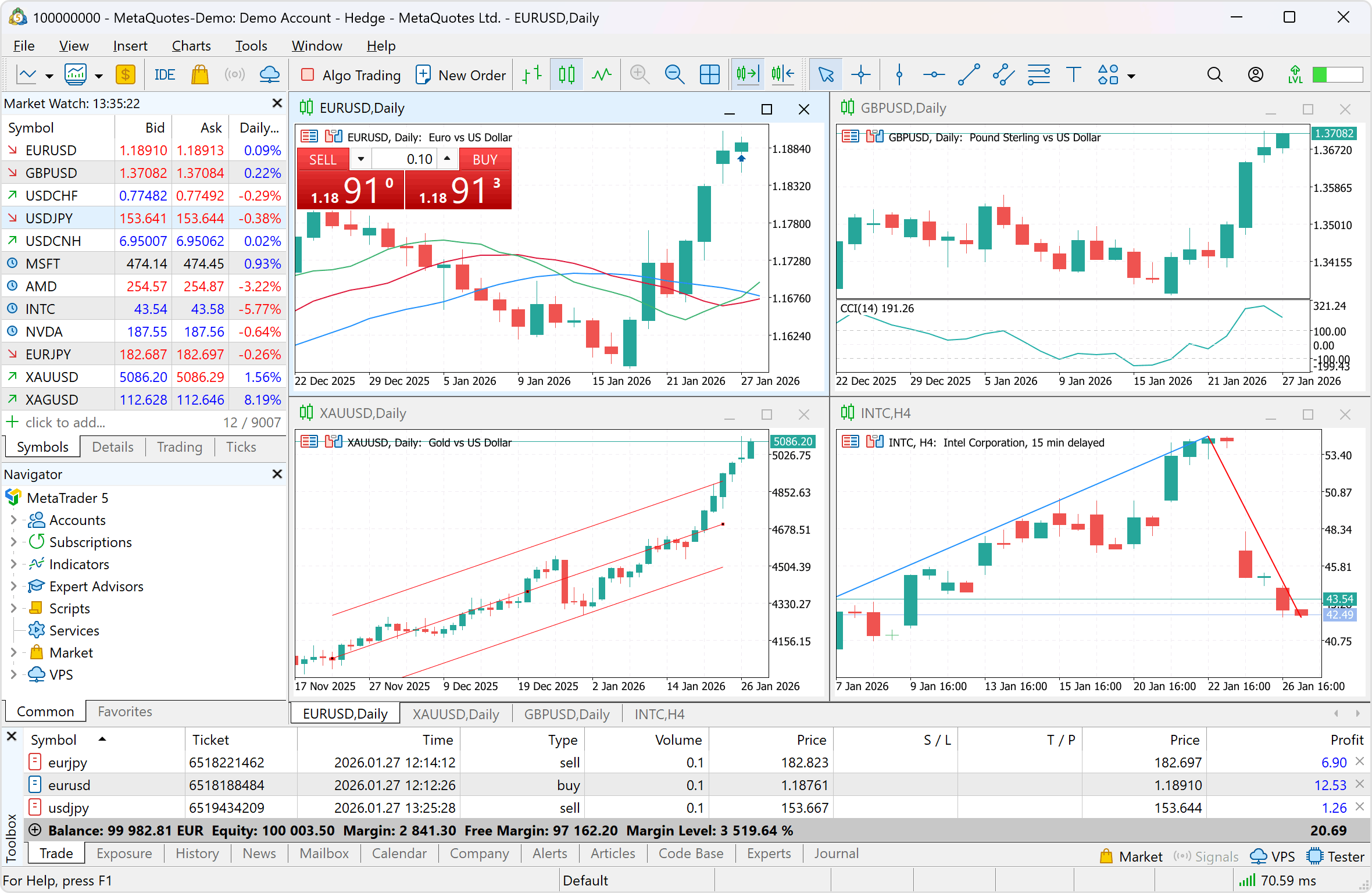
Fig 3: Customizing Chart Colors
Add Grid & Period Separators:
In the same Properties window, check/uncheck Show Grid and Show Period Separators based on your preference. Most pros prefer a clean look without gridlines.
Step 4: Add Basic Indicators
Indicators help you analyze trends. Start with these essentials:
- Go to Insert > Indicators.
- Moving Average (MA): Helps identify trend direction. (Settings: Period 50, Method Simple).
- RSI (Relative Strength Index): Shows overbought/oversold conditions. (Settings: Period 14).
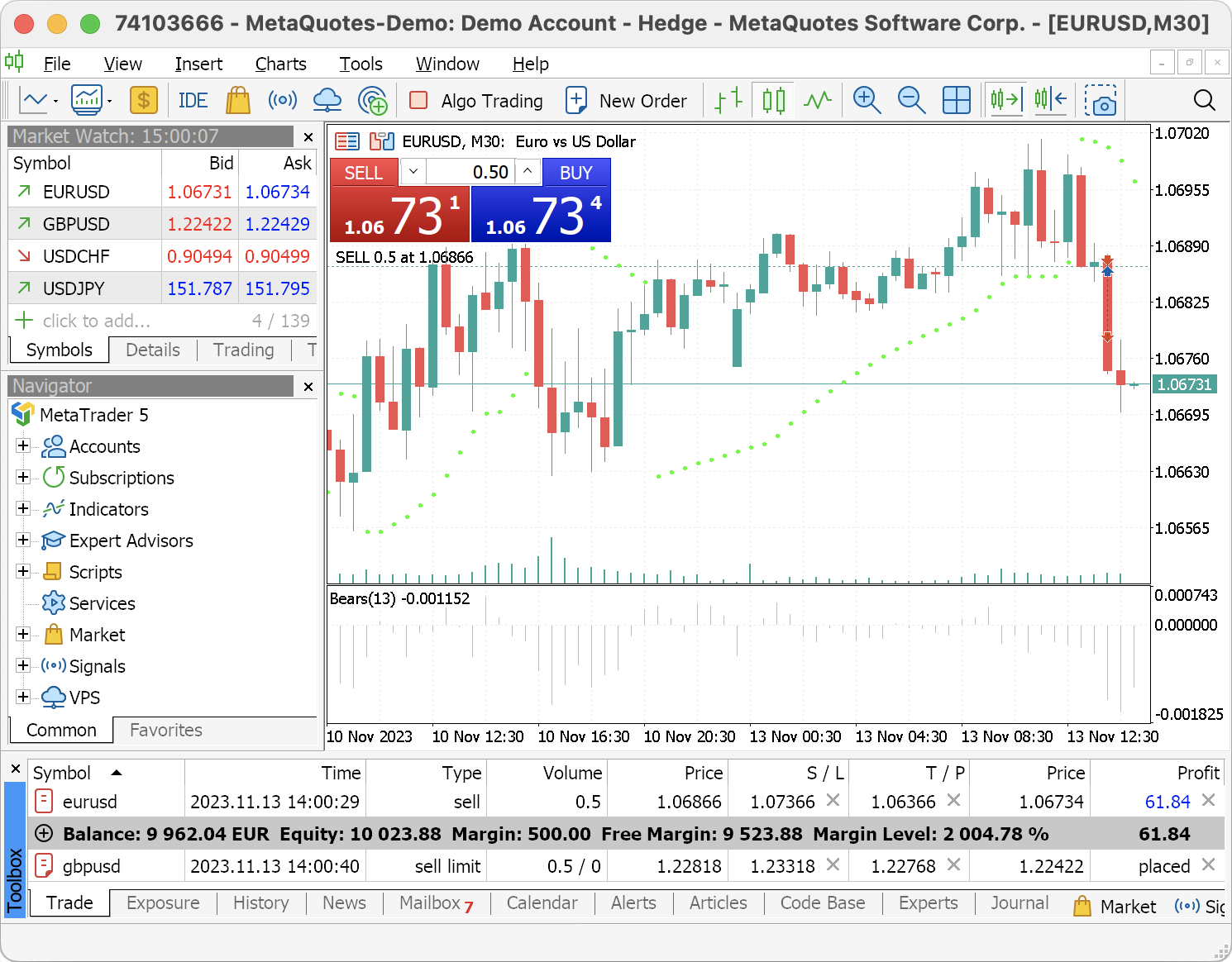
Fig 4: Adding Moving Average and RSI
Tip: Don’t overload your chart with too many indicators. Less is often more!
️ Step 5: Configure Risk Management Tools
Protecting your capital is crucial. Set up these tools:
One-Click Trading:
- Go to Tools > Options > Trade.
- Check Enable One-Click Trading.
- This allows you to enter/exit trades quickly from the chart.
Stop Loss & Take Profit:
Always set these when placing a trade:
- Stop Loss (SL): Limits your loss if the market moves against you.
- Take Profit (TP): Automatically closes your trade when you reach your profit target.
Fig 5: Setting Stop Loss and Take Profit
💾 Step 6: Save Your Template
Once your chart looks perfect, save it as a template:
- Right-click on the chart > Template > Save Template.
- Name it (e.g., "My_Pro_Setup").
- Next time, just load this template to apply all your settings instantly.
For more advanced tips, check out our Help Center.
✅ Final Checklist
- ☐ MetaTrader Installed & Logged In
- ☐ Charts Customized (Colors, Grid)
- ☐ Basic Indicators Added (MA, RSI)
- ☐ One-Click Trading Enabled
- ☐ Template Saved
🎁 Bonus: Where to Go Next?
Now that your platform is ready, it’s time to learn how to trade. Explore these resources:
Ready to Start Trading?
You’ve got the setup. Now master the strategy.
Frequently Asked Questions
Q: Can I use this setup on mobile?
A: Yes, the MT4/MT5 mobile apps allow similar customization, though some advanced features are desktop-only.
Q: How many indicators should I use?
A: Start with 2-3. Too many indicators can cause "analysis paralysis."
Q: Is MetaTrader free?
A: Yes, both MT4 and MT5 are free to download and use.
Comments (0)